The Suno to YouTube Pipeline: 5 Steps to Automate Your Music Release
You've discovered Suno AI, and frankly, it's magic. You can type a prompt and have a radio-ready song in seconds. But if you are trying to build a music channel on YouTube, you've likely hit a wall.
Suno gives you the audio, but it doesn't give you a video. It doesn't give you a thumbnail. It certainly doesn't upload it to YouTube for you.
Most creators get stuck in what we call the "Suno Gap"—the messy, manual process of downloading MP3s, stitching them together in an editor, and hoping for the best.
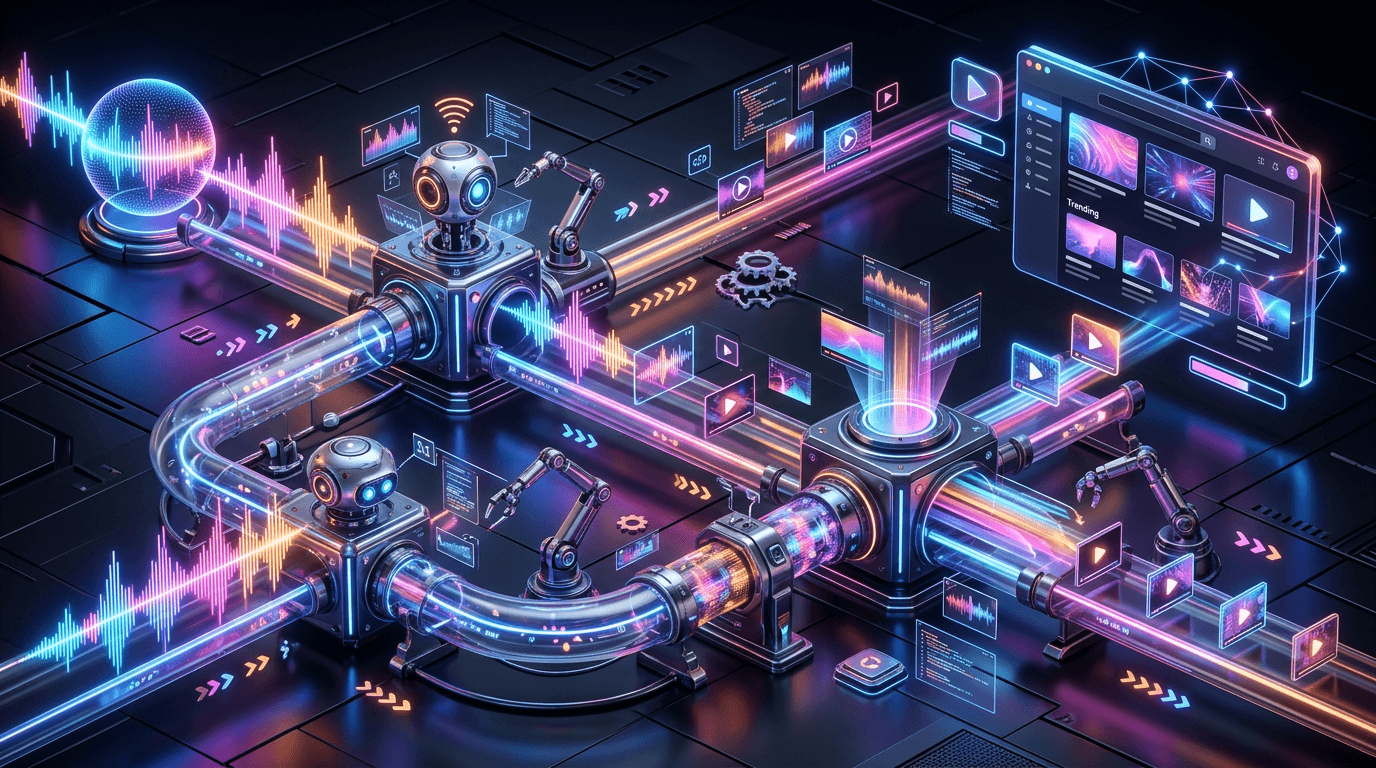
To scale your channel, you need to move away from manual file management and toward a fully automated pipeline. Here is the 5-step workflow to turn a single text idea into a published YouTube playlist, without ever opening a video editor.
Step 1: Ideation – Writing the "Master Prompt"
The secret to a successful YouTube playlist isn't just one good song; it's 20 songs that feel like they belong together.
In the manual workflow, you have to brainstorm a unique prompt for every single track. This leads to disjointed playlists where track 1 is Jazz and track 2 is Techno.
psychologyThe Automated Approach
Start with a "Master Prompt." Describe the entire vibe, the intended use case, and the sonic palette.
- Bad Prompt: "Make a song."
- Good Prompt: "A 20-song playlist of Melodic Techno, 120 BPM, ethereal vocals, dark atmosphere, suitable for late-night driving."
By defining the parameters upfront, you ensure that when the AI generates the bulk tracks, they maintain a consistent identity from start to finish.
Step 2: Bulk Generation – Stop Creating One-by-One
This is where the traditional Suno workflow kills productivity. To get a 1-hour playlist, you have to prompt Suno, wait for the generation, extend the song if you like it, download the files (both V1 and V2), and repeat.
Do that 20 times, and you've wasted your entire afternoon.
The Automated Approach:
Using PlaylistCraft, you input that Master Prompt once. The system understands that you need volume. It automatically queues the generation of 20 unique songs, complete with lyrics (or instrumental modes) and multiple versions.
You don't manage individual downloads. You simply watch the progress bar fill up as your entire album is created in the background.
Step 3: Visuals – Matching the Mode to the Genre
You have the audio. Now you need the video. In a manual workflow, this means scouring Pexels or Unsplash for stock footage, or hoping CapCut has a template that matches your Techno vibe.
But different genres require different visual treatments:
- Focus/Jazz: Needs a static, calming image (Mode 1). Movement is distracting.
- EDM/House: Needs a looping motion background (Mode 2) to match the energy.
- Pop/Variety: Needs a mix of scenes (Mode 5) to keep the viewer engaged.
The Automated Approach:
When you initiate the project, you select a Visual Mode. The AI generates or selects the appropriate media assets to match your genre.
- If you chose "Static," it renders a high-res aesthetic image.
- If you chose "Mixed Media," it generates a sequence of 5 videos and 10 images.
The visuals are generated in parallel with the music, ensuring the mood matches perfectly without you ever opening Photoshop.
Step 4: Rendering – Cloud vs. Local
This is the hidden bottleneck. If you are using CapCut or Premiere Pro, you are using your personal computer's CPU to render a 60-minute 4K video. Your fans will spin, your laptop will overheat, and you can't use your computer for anything else for the next two hours.
The Automated Approach:
PlaylistCraft uses Remotion-powered cloud rendering. Once your songs and visuals are ready, you click "Render." The file is assembled on high-performance cloud servers. You can close your laptop and go grab dinner. When you come back, the rendered video file is waiting for you—ready for upload, with zero strain on your local machine.
Step 5: Publishing – The Final Mile
The manual finish line involves logging into YouTube Studio, dragging that massive 5GB video file, waiting for it to upload, and then manually typing out a title, description, and tags. It's tedious and prone to error.
The Automated Approach:
Connect your YouTube channel once inside the platform. When the cloud render is complete, the system pushes the video directly to your channel.
- It auto-generates a SEO-optimized title based on your prompt.
- It writes a description with relevant keywords.
- It assigns the video to the correct playlist.
You go from "Idea" to "Published" with a single click.
Related Articles
View All
Summary: The Old Way vs. The New Way
| Feature | Manual Workflow | Automated Pipeline |
|---|---|---|
| Step 1 | Brainstorm 20 prompts | Write 1 Master Prompt |
| Step 2 | Download 40 MP3s | Auto-generate 20 songs |
| Step 3 | Manually find stock footage | Select Visual Mode |
| Step 4 | Wait 2 hours (Local Render) | Wait 10 mins (Cloud Render) |
| Step 5 | Manual upload & metadata | One-click publish |
Stop acting like a video editor and start acting like a label executive. Let the pipeline handle the grunt work so you can focus on your next big idea.
Ready to automate your releases?

PlaylistCraft Team
Engineering
Insights from the engineers building the world's fastest AI rendering engine for YouTube creators.